
Migrate Your WhatsApp Number to the Business API Without Losing Chats
WaZappy · 7 August 2026 · 8 min read
In this article16 sections
- Key Takeaways
- Why Your Business Needs the WhatsApp Business API
- The Limitations of the Free App
- Understanding the WhatsApp API Migration Process
- Step 1: Prepare Your Business Number
- Step 2: Set Up Your Meta Business Account
- Step 3: Gather Required Documentation
- Step 4: Choose Your Meta Tech Provider
- Step 5: The Number Porting Process
- Step 6: WhatsApp API Activation and Going Live
- Preserving Your Chat History During Migration
- Achieving WhatsApp Green Tick Verification
- Understanding Pricing and Costs
- How WaZappy Helps with Migration and Beyond
- Frequently asked questions
- What to do next
Key Takeaways
Key takeaways
- You can migrate your existing WhatsApp number to the Business API without losing chat history.
- The process involves preparing your Meta Business account, gathering documents, and choosing a Meta Tech Provider.
- WaZappy, an Infrared Techno product, simplifies the migration and setup for Indian businesses.
- While chat history is preserved locally, it doesn't automatically sync to the API interface.
Why Your Business Needs the WhatsApp Business API
You've relied on WhatsApp for customer conversations. Maybe it's your personal number or the free WhatsApp Business app. Now, your business is growing. You need more than just basic messaging. You need automation, efficient team collaboration, and a professional brand presence. This is where the WhatsApp Business API comes in.
The big question for many Indian businesses is: Can I use my current, familiar WhatsApp number? And critically, will migrating mean losing all those valuable customer chats built over time?
The answer is a resounding yes. You can use your existing WhatsApp number. And no, you don't have to lose your important chat history. Migrating your number to the WhatsApp Business API is a well-defined process. It requires careful steps, but your chat history stays intact. This guide will walk you through exactly how to get your WhatsApp Business API in India and set it up smoothly.
The Limitations of the Free App
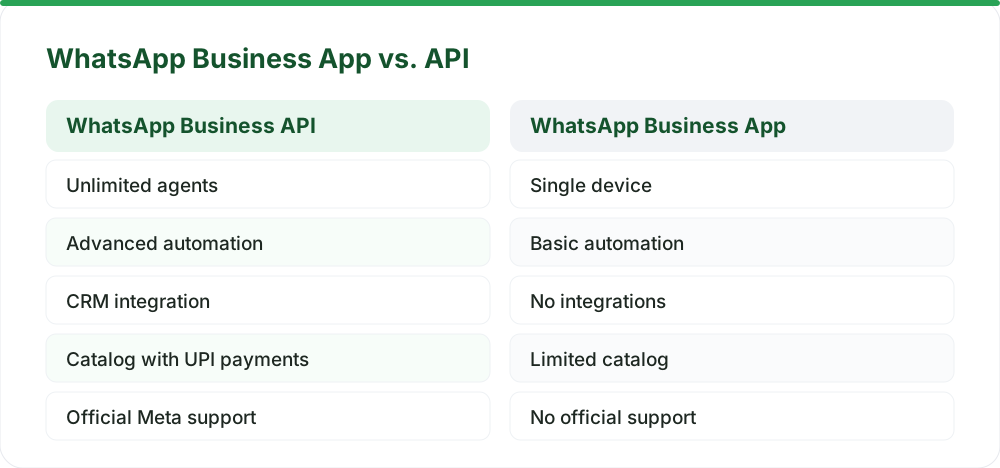
The free WhatsApp Business app is a good starting point for small businesses or sole proprietors. However, as your customer base expands and communication needs become more complex, its limitations become apparent.
You can't have multiple team members replying from a single number without chaos. Automation is often basic, if available at all. There’s no official, straightforward way to integrate it with your existing CRM, ERP, or other critical business tools. This is where the WhatsApp Business API offers a significant upgrade. It's built for scale, offering:
- Multiple agents accessing and responding from a single business number.
- Advanced automation for FAQs, order updates, and customer support.
- Official integration capabilities via a robust REST API.
- A rich catalog feature that can directly support UPI payments.
- The potential for WhatsApp green tick verification to build trust.
Understanding the WhatsApp API Migration Process
Moving your number to the WhatsApp Business API isn't about uninstalling and reinstalling. It’s about transferring the number's registration from the standard WhatsApp service to the Meta Cloud API, which is the official, scalable solution powering platforms like WaZappy.
Here are the key stages involved:
Step 1: Prepare Your Business Number
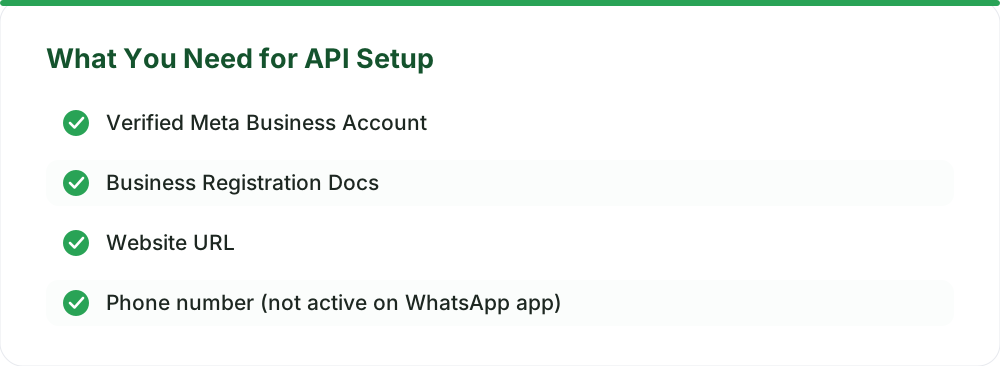
First, ensure your current WhatsApp number is not actively used on the standard WhatsApp app or the free WhatsApp Business app. If it is, you'll need to move it to the Business app temporarily before starting the API migration. This step is crucial for Meta to properly register the number for the API service. You cannot have the same number active on multiple WhatsApp applications simultaneously. The API registration requires a clean slate for that number on Meta's end.
Step 2: Set Up Your Meta Business Account
The WhatsApp Business API is intrinsically linked to a Meta Business Manager account. If you don't have one, you'll need to create it. This account is where Meta verifies your business identity and assets. You will be required to provide specific business documentation.
For a smooth process, ensure your Meta Business account is verified. This verification is a prerequisite for API approval and is also a step towards eventual WhatsApp green tick verification, though that is a separate, later process managed entirely by Meta.
Step 3: Gather Required Documentation
Meta needs to verify your business legitimacy. This is a critical step for WhatsApp Business API approval. Be prepared to provide:
- Proof of business registration (e.g., Certificate of Incorporation, GST certificate).
- Business address proof.
- Your official business website URL.
- A clear description of how you plan to use the API (e.g., customer service, transaction notifications, marketing messages to opted-in users).
Having these documents ready significantly speeds up the WhatsApp Business API setup. You can find detailed requirements on Meta's official documentation.
Step 4: Choose Your Meta Tech Provider
While it's technically possible to interact directly with the Meta Cloud API, most businesses find it far more practical and efficient to use a platform. This is where a Meta Tech Provider, like Infrared Techno, comes in. We simplify the entire WhatsApp Business API setup, offer user-friendly interfaces, and provide essential support.
Infrared Techno is a Meta Tech Provider on the official WhatsApp Business Platform (Cloud API). Our product, WaZappy, is specifically designed for the Indian market. It handles the underlying technical complexities, allowing you to focus purely on effective customer communication.
Step 5: The Number Porting Process
Once your Meta Business account is verified and you've selected your tech provider, the number porting can begin. This process is typically initiated through your provider's dashboard.
You will usually need to:
- Initiate the porting request on the provider's platform.
- Receive a verification code via SMS or a voice call sent to the number you wish to migrate.
- Enter this code into the provider's platform to authorize the transfer.
This process officially transfers the number's registration from the standard WhatsApp service to the API infrastructure. Crucially, your chat history is generally preserved because the phone number itself isn't changing; only its underlying service registration is being updated.
Step 6: WhatsApp API Activation and Going Live
After the number porting is successfully completed, the API number is activated. For most businesses, this means going live on the WhatsApp Business API the same day. Activation hinges on your Meta Business account being fully verified and the number porting process completing without any hitches.
This activation is the culmination of your WhatsApp Business API setup.
Preserving Your Chat History During Migration
This is often the biggest concern for businesses. When you migrate a number, the chat history resides on your device and is tied to that phone number. The API registration process primarily alters how Meta routes messages *to* and *from* that number. It doesn't inherently delete the data stored locally on your phone or in your cloud backups.
However, it's vital to understand that the API itself doesn't directly access or display your old chat history from the WhatsApp app. Therefore, you must ensure your chats are backed up before initiating the migration.
Once the API is active, all new conversations will flow through the API platform (like WaZappy). Your old chats will remain accessible locally on your device. You may need to manually export or reference them if required. Think of it like switching your phone number's network carrier – the number stays the same, but the network changes. Your contacts are still there, but call logs from the old provider might not automatically appear on the new system.
Achieving WhatsApp Green Tick Verification
The coveted green tick next to your business name signifies authenticity and builds significant trust with customers. It assures users they are communicating with the official business entity.
Obtaining the WhatsApp green tick verification is a separate, rigorous process managed directly by Meta. It requires your business to be well-known, authentic, and have a strong, verifiable online presence. A verified Meta Business account is a prerequisite.
The application is submitted through your chosen Meta Tech Provider. Meta then reviews each application independently. This review process can take anywhere from a few days to a couple of weeks. It's important to note that no provider can expedite this process; it is entirely at Meta's discretion.
Understanding Pricing and Costs
There is no setup fee for the WhatsApp Business API itself. However, an optional assisted setup service is available for ₹2,499 + GST (one-time charge) to help businesses navigate the technicalities.
Meta bills conversation charges directly to the business. These charges vary based on the type of conversation (user-initiated or business-initiated) and fall under specific categories: Marketing, Utility, or Authentication. WaZappy adds no markup to these Meta conversation rates, ensuring transparent and direct Meta billing.
Additionally, WaZappy offers a free plan with no expiry, providing essential features for smaller businesses. You can explore detailed plan limits and features on our pricing page.
How WaZappy Helps with Migration and Beyond
Migrating your number and setting up the WhatsApp Business API can seem daunting. WaZappy, by Infrared Techno, is built to make this transition effortless for Indian businesses. Our platform guides you through the number porting process step-by-step. We handle the technical integration with Meta, ensuring a smooth activation.
Beyond setup, WaZappy provides a comprehensive suite of tools to leverage the API effectively. This includes a no-code flow builder to create automated responses and customer journeys, AI chatbot capabilities for instant support, and advanced broadcast management for engaging opted-in users. You can explore all our features here: WaZappy Features.
Ready to scale your customer communication? Start free on WaZappy.
Frequently asked questions
How long does it take to get the WhatsApp Business API?
Once your Meta Business account is verified and all required documents are submitted, most businesses can go live on the API within the same day. The number porting process itself is usually very quick.
Can I use my current WhatsApp number for the Business API?
Yes, you can migrate your existing WhatsApp number to the Business API. However, the number must not be active on the standard WhatsApp or WhatsApp Business app during the migration process.
Is the WhatsApp Business API free in India?
There is no setup fee for the API. Meta charges conversation rates based on usage. An optional assisted setup costs ₹2,499 + GST. WaZappy offers a free plan and transparent pricing without any markups on Meta's conversation charges.
What to do next
Migrating your WhatsApp number to the Business API is a pivotal step for enhancing your business communication in India. Ensure your Meta Business account is verified and all necessary documents are readily available. Partner with a trusted Meta Tech Provider like WaZappy to navigate this process seamlessly and unlock the full potential of WhatsApp for your business.
Read next
All WhatsApp Business API guides →WhatsApp Flows: Capture Leads & Orders Instantly In-Chat
Learn how WhatsApp Flows transform lead capture and order processing, turning chats into powerful sales tools for Indian businesses.
WhatsApp for Real Estate: Reply to Leads Before They Go Cold
Don't let real estate leads go cold. Discover how the WhatsApp Business API provides instant responses, qualifies buyers, and boosts conversions.
WhatsApp for Restaurants: Direct Orders Without the Aggregator Commission
Stop paying hefty commissions to food aggregators. Learn how to use the WhatsApp Business API to take direct orders, boost repeat business, and own your customer relationships.
Want this on your WhatsApp?
WaZappy is the WhatsApp Business API platform with every advanced feature built in — start free and connect your number in minutes.
Start free on WaZappy